



How it works
How To Order
Browse the store, check out, and pay. Most orders take a few minutes.
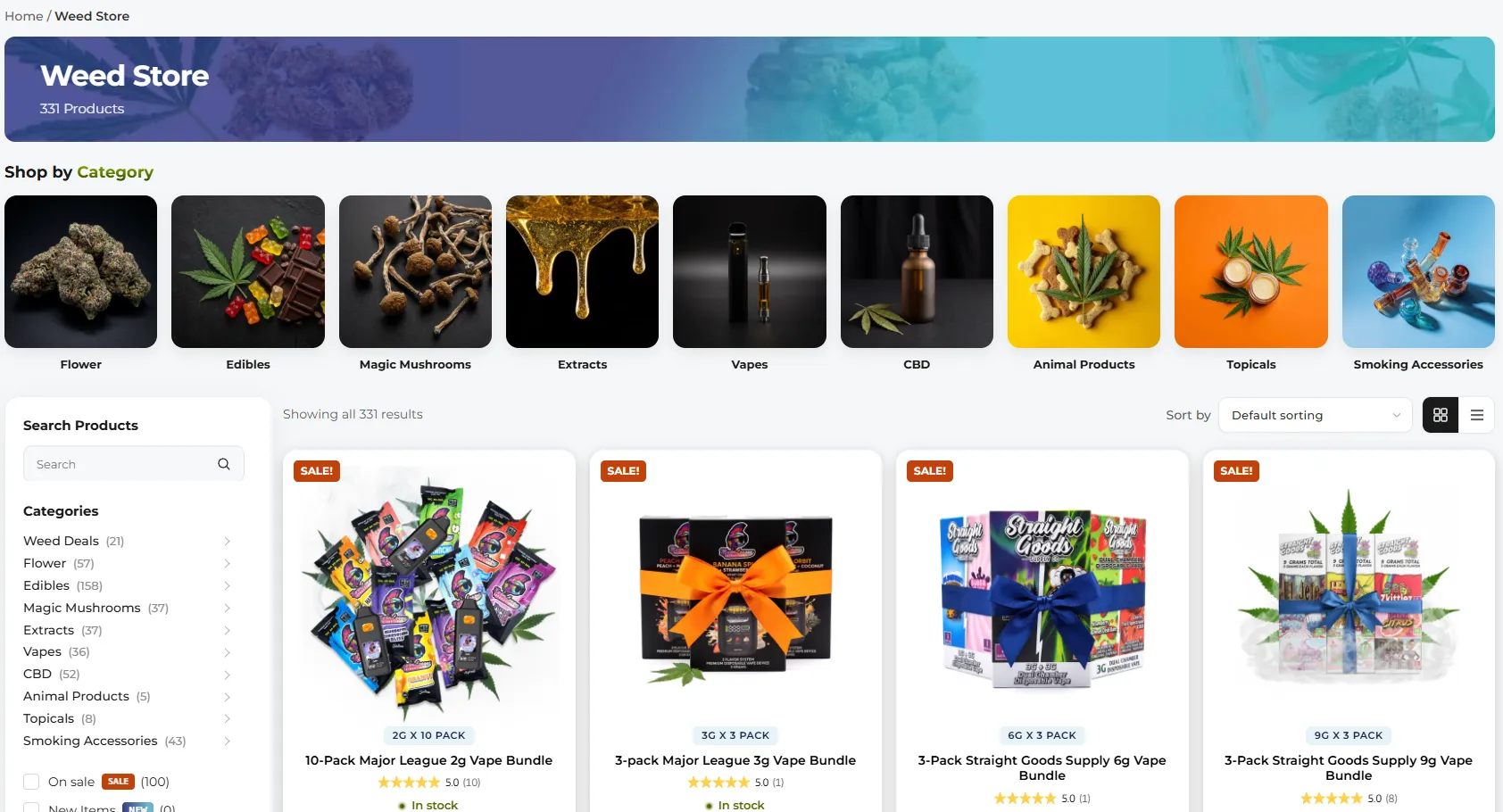
Browse the Store
Open the shop and start from Shop by Category, or use Search Products in the sidebar. You can also narrow the list with Categories, Brands, On sale, New Items, Filter by Price, and Ratings. On a phone, open the same filters from the filter button.
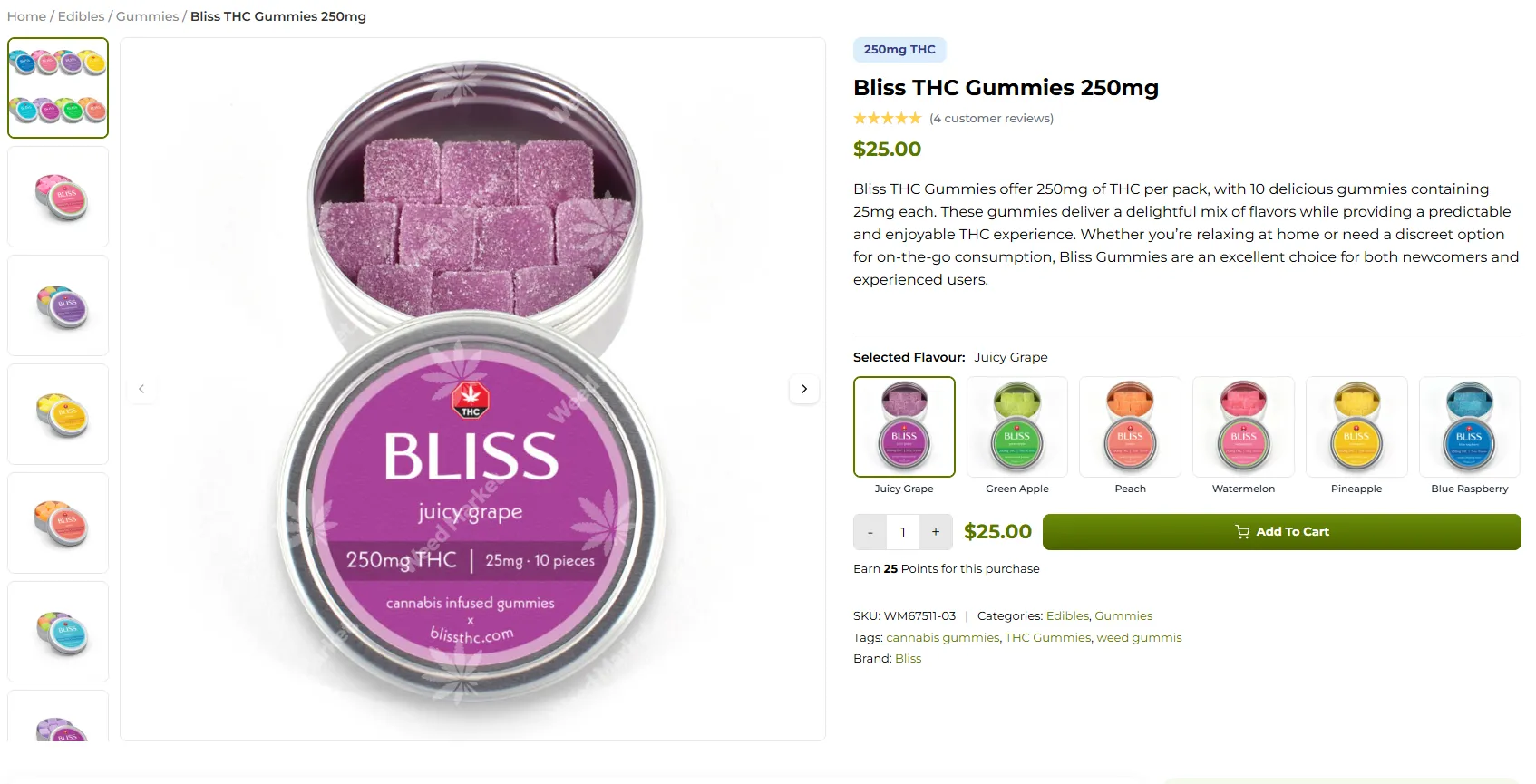
Each product card shows the photo, name, and price. Select View Product to open it. On the product page, choose the option (weight, size, or other choice). The add button stays inactive until that choice is made, and it prompts you to select it. Set the quantity, then add the product. The cart drawer opens on the right.
Review Your Cart
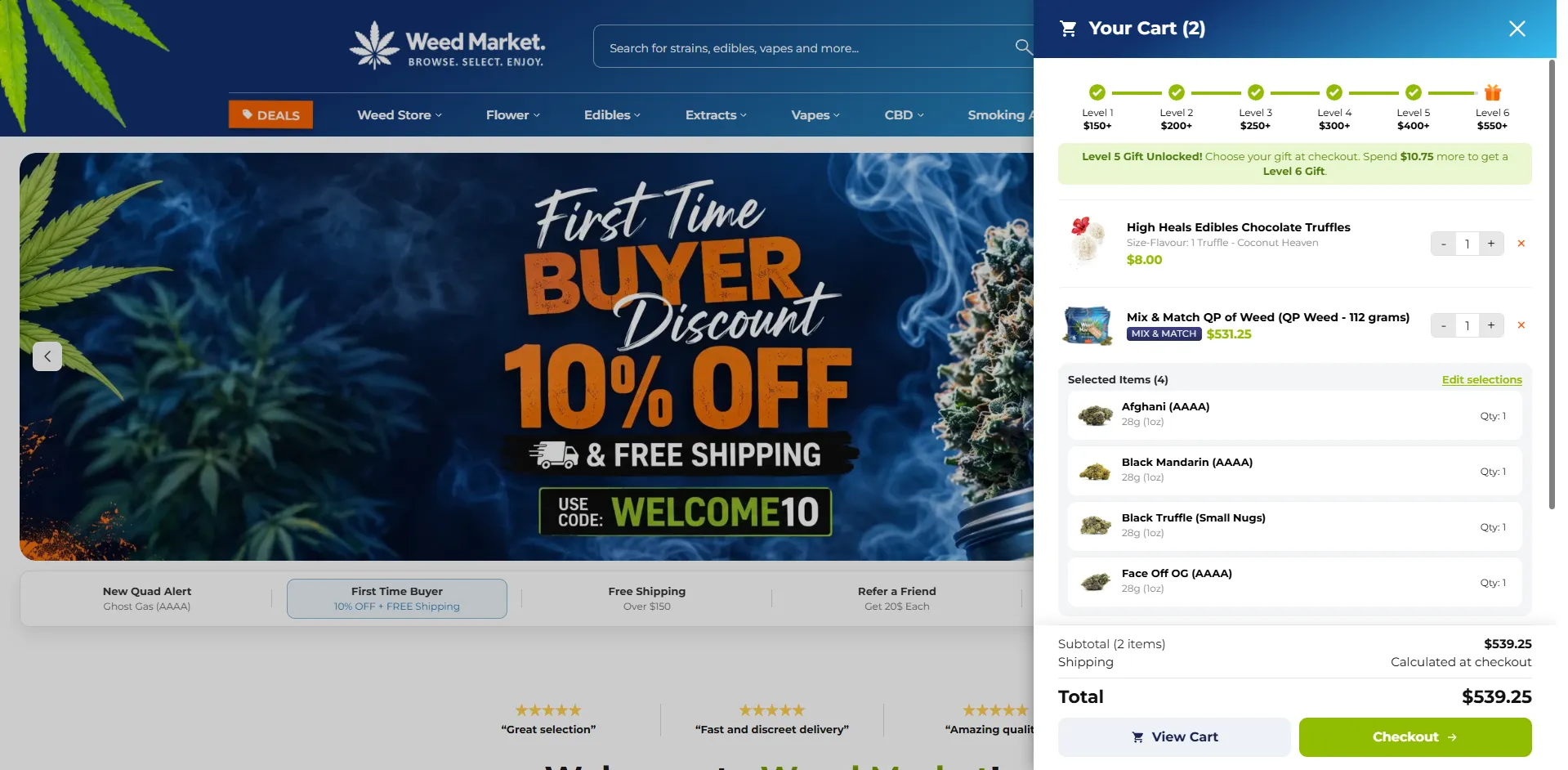
The cart drawer lists each item with its photo, name, option, quantity, and price. Change the quantity or remove a line. A bundle lists what is inside it, and Edit selections takes you back to change the mix.
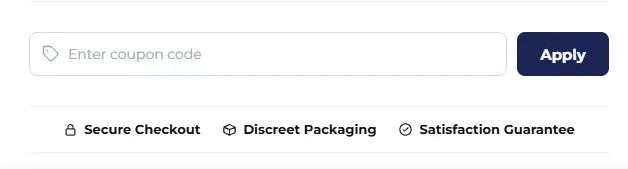
Under the items, enter a code in Enter coupon code and select Apply. A valid code shows Coupon applied! and the amount saved. Remove takes it off.
The footer shows Subtotal, Shipping, and Total, then View Cart and Checkout.
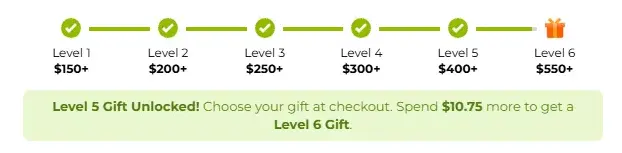
The gift progress bar tells you how much is left until you unlock the next gift tier. You can select your gift on checkout. The more you spend – the better the gift you can select.
Sign In or Continue as a Guest
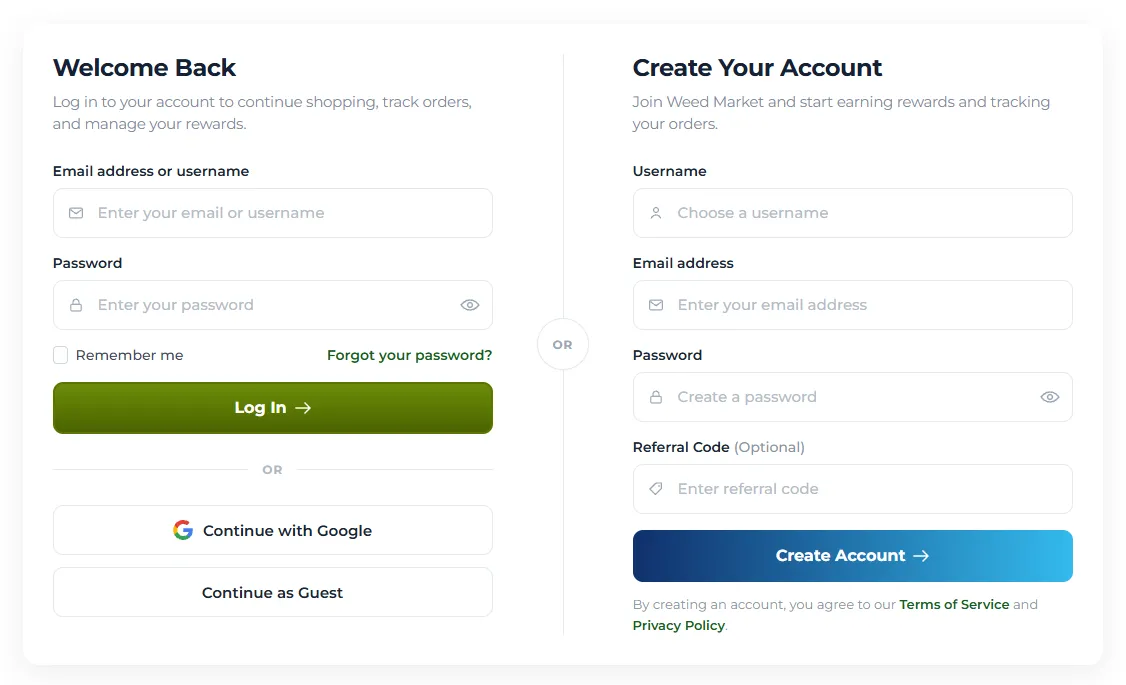
Checkout asks you to sign in before the form appears. Log in if you have an existing account to collect Market Points. You can also continue with Google sign in.
Create a new account if you don’t have one: add your email, password and an optional Referral Code if you were referred by someone. New accounts start with 500 Market Points ($5). You earn 1 point per $1 spent, and 100 points equals $1 off a later order.
Continue as Guest skips the account and opens checkout. You can still set a username and password on the summary so the order is saved to a new account for that email.
Enter Your Billing Address
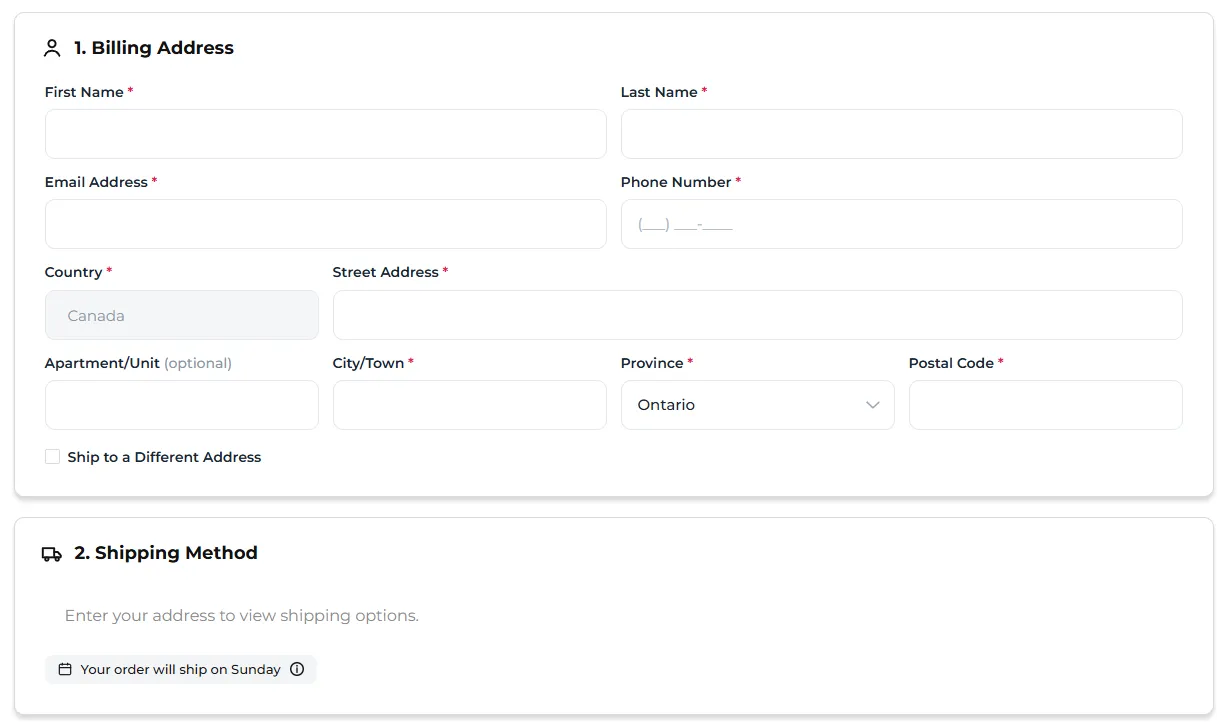
Billing Address asks for First Name, Last Name, Email Address, Phone Number, Country, Street Address, Apartment/Unit, City/Town, Province, and Postal Code.
Shipping choices stay hidden until city, province, and postal code are filled in. Please ensure the information you enter is correct before proceeding.
If your shipping address differs from your billing address, tick the ‘Ship to a different address’ checkmark and enter your shipping address.
Choose a Shipping Method
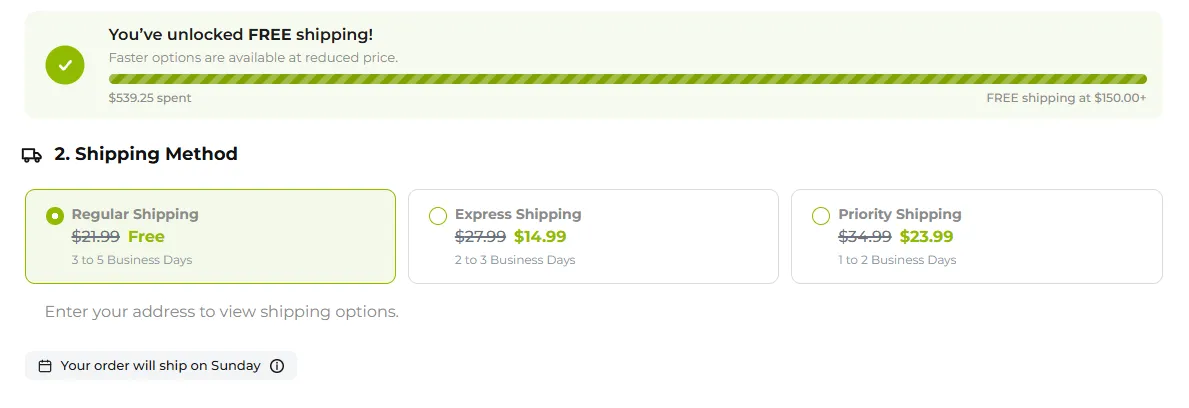
Shipping Method lists the rates for your address. If the order qualifies, you can get free regular shipping. Other rates can show a reduced price the same way.
Above the rates, the free-shipping bar shows either how much is left or You’ve unlocked FREE shipping! A line under the rates counts down to same-day shipping, for example Order in the next 2 h 15 min and your order will ship today. The info button opens Shipping schedule: orders placed Sunday to Friday before 8pm ship that evening and are picked up the next business day. Orders after 8pm Friday, or on Saturday, ship Sunday evening.
Choose a Payment Method
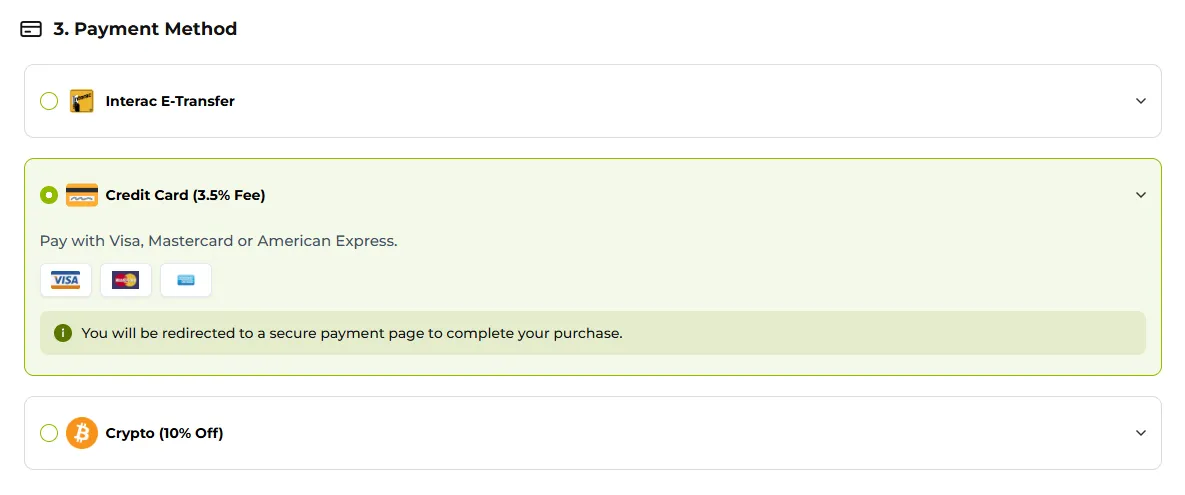
Payment Method lists the ways to pay, including card, Interac e-Transfer and crypto.
Interac orders are confirmed after the e-Transfer is sent. The email asks you to send the order total within 24 hours. Crypto orders show the amount and wallet address on the confirmation page.
Credit Card Payments will transfer you to another secure page to finish paying for your order. There is a 3.5% fee that applies to payments with a credit card.
Set Your Order Preferences
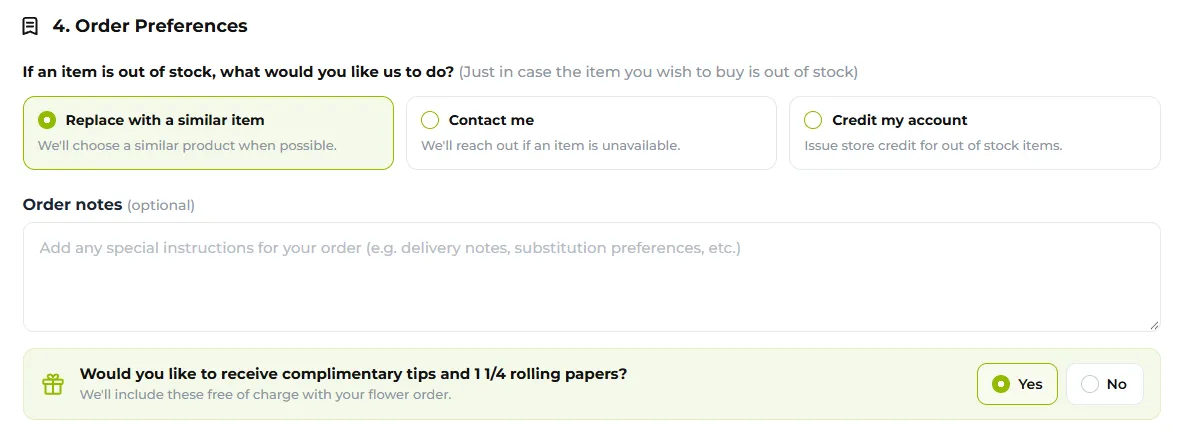
Please let us know what you would like to do if an item for your order is out of stock. Pick one:
- Replace with a similar item. We’ll choose a similar product when possible.
- Contact me. We’ll reach out if an item is unavailable.
- Credit my account. Store credit is issued for out-of-stock items.
Order notes is optional. The field says: Add any special instructions for your order (e.g. delivery notes, substitution preferences, etc.).
If the cart includes flower, one more question appears: Would you like to receive complimentary tips and 1 1/4 rolling papers? Choose Yes or No. They are included free with that flower order.
Review and Place Your Order
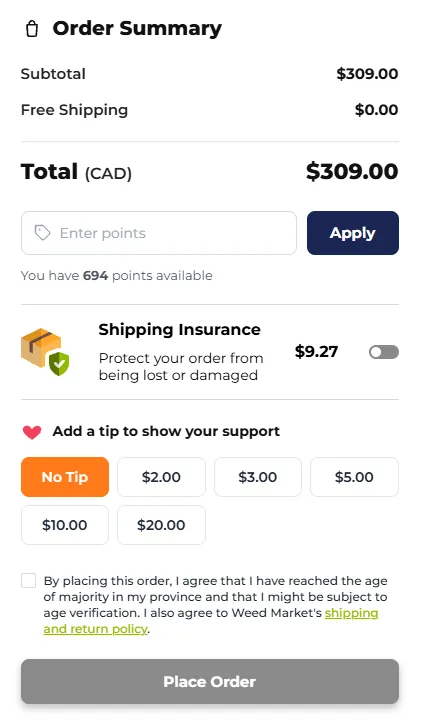
Your Cart on the left is a final check of the lines in the order. The right column is Order Summary, with subtotal, shipping, and total. If your order is over $150+ you can also select a free gift by clicking on the banner. This will open a popup with gift selection where you can choose a single item that you like.
On the order summary you can also:
- Apply Market Points if you are signed in. Enter an amount and select Apply. The line under the field shows how many points you have. Points are not offered to guests.
- Add Shipping Insurance if you want the order covered against loss or damage during transit.
- Add a Tip: You can add a tip to show your support – this is completely optional
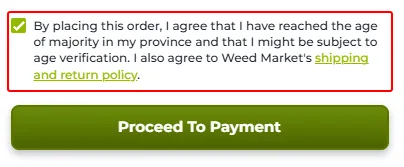
Check I agree to Terms of Service and Privacy Policy. “Place Order” button stays inactive until that box is checked.

Check I agree to Terms of Service and Privacy Policy. Place Order stays off until that box is checked.
Confirmation and Tracking
Once you placed your order:
If you paid with a credit card – your order is now processing. You will receive an email with tracking information once your order ships.
If you chose to pay with Interact E-Transfer or Crypto – follow the payment instructions in the email you received after placing your order. Once the payment clears – your order will be set to processing and you will receive an email with tracking once the order ships.
You can also check the status of your shipment in My Account page or Track My Order page.
























 DEALS